STUFF WE DO

WebFrom website development to back-end servers to mobile applications to SMS services, we’ve got it covered. Nductiv builds custom sites and applications or just a special WordPress theme or plugin to make your brand stand out from the crowd; and … with complete mobile awareness. If you prefer, we can have your iOS or Android app up and running in a jiffy. Not only will we rivet your customers’ eyeballs to your site, but also the search engines will show you their love!


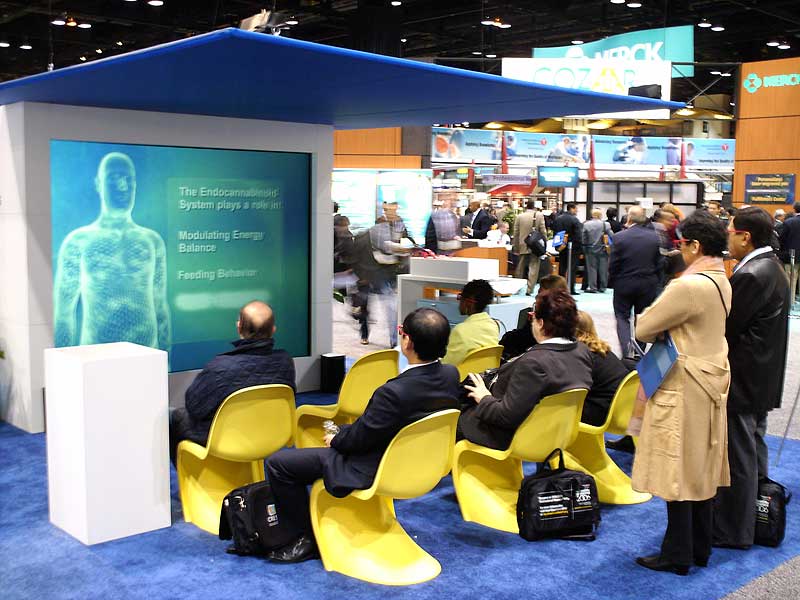
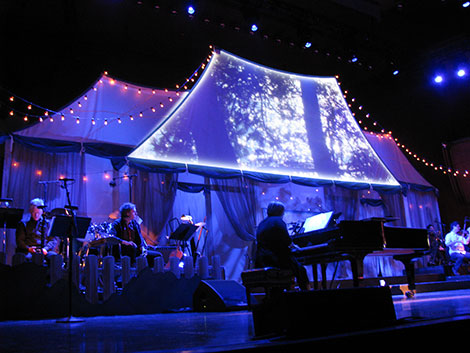
Digital SceneryWe start with 3D Projection Mapping and take it to a new level of interaction and audience involvement using gesture recognition, mobile devices, and performance response. Wrap fantastic images, animations, and video around a theater set or an entire building. The sky’s the limit!
OK, 3D imagery pre-dates the Civil War, but Nductiv sees things differently: interactive, audience inclusive, and memorable. Put each individual in the 3D scene and let them take it home, complete with a branded 3D viewer. Broadcast your 3D event on the web. Stream it to mobile devices. Go immersive. We have multiple 3D still cameras and high-def video cameras; and a complete stereoscopic post production suite.

stereocam
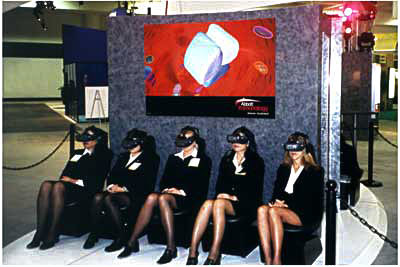
VRWe’ve been creating virtual reality environments and providing VR equipment for corporate events (trade shows, conferences, etc…) for more than 20 years. Nductiv will whip you up a custom VR game or application; and we’ve got the highest quality rental inventory in the business. Become the star attraction at your next event.

Enjoy tales of the early days of Virtual Reality, check out some great VR DIY tutorials, and some of the coolest VR gear for sale; right over at VRtifacts.com

OUR CLIENTS

OUR TEAM

Tony's photoTony Asch does most of the heavy lifting here at Nductiv. Computer graphics has been a passion and occupation for 35 years, beginning with one of the first computer paint systems introduced to the market (and ultimately distributed by 3M Broadcast), well before the era of personal computers. Two decades ago, Tony went on to found a pioneering start-up, StrayLight Corp. who, along with a handful of other firms, brought Virtual Reality out of the labs. He blogs about those heady days at VRtifacts. Along the way, Tony found time to build several technology companies which were subsequently acquired by more established firms seeking new products and markets.

At Nductiv, Tony has applied this diverse skill set to internet based solutions: responsive websites, mobile applications, content aggregation, and published several WordPress plugins. In addition, he’s designed and implemented Digital Mapped Scenery venues including Lincoln Center and other theaters in the NYC area. Tony’s also been a frequent guest lecturer at Indian Institutes of Technology and National Institutes of Technology, also in India. Tony holds an MBA with distinction from The Wharton School, and a BA in History and Sociology of Science from the University of Pennsylvania.

PLUGINS

WordPress Plugin – 3D Pix

  • Adds the shortcode [3dpix] which embeds a 3D image from Phereo.com into your post.
  • It also adds an insert 3D Pix button to the tinymce editor.

Download 3D Pix from WordPress.org.

3D Pix shortcode syntax:

[3dpix id="4d37dbde378501ef25a80300" width="440" height="340" mode="anaglyph"]

Where the parameters are:

id – the Phereo.com image number…you can find this in the Phereo.com URL or Embed Code (Required)

A Phereo embed: <iframe src=”http://phereo.com/e/embed/4d37dbde378501ef25a80300/anaglyph/500.300/important” width=”500″ height=”300″ frameborder=”1″ vspace=”0″ hspace=”0″ marginwidth=”0″ marginheight=”0″ scrolling=”no” noresize> <p>See stereo 3D on <a href=”http://phereo.com”>Phereo</a>.</p></iframe>

In this case the id is 4d37dbde378501ef25a80300

Or an Phereo.com URL: http://phereo.com/Nductiv/image/4d37dbde378501ef25a80300/

In this case the id is 4d37dbde378501ef25a80300

Phereo has two numbering systems for picture ids, the old one which is a reasonably small number like: 127, and the new one which is a very long hexadecimal value like: 4d37dbde378501ef25a80300. The small number version no longer works with 3D Pix. You will need to replace your small picture id with the large number version which you can find on the Phereo site, from the Phereo URL for your photo. Sorry… they seemed to have changed in mid-stream.

width – width in pixels of the embedded 3D picture (Optional)

height – height in pixels of the embedded 3D picture (Optional)

mode – 3D display mode: anaglyph, parallel, crossed, vinterlaced, hinterlaced, chinterlaced, animated, or nvidia (Optional)

Settings Page:

Defaults for the optional parameters can be set on the plugin settings page. If the optional parameters are not specified in the post/page shortcode, the defaults set on this page will be used.

3D Pix Settings

Post Editor Button

3D Pix also adds a 3D Pix icon to the tinymce editor which can be used to insert the shortcode and set options.

3D Pix Editor Button

Download 3D Pix:

At WordPress.org Plugin Repo.

Installation:

  1. Upload `3dPix` folder to the `/wp-content/plugins/` directory
  2. Activate the plugin through the ‘Plugins’ menu in WordPress
  3. Adjust the default parameters for the shortcode in the WordPress Settings->3D Pix area
  4. Have fun inserting shortcodes

Frequently Asked Questions:

What is Phereo.com? A free site where people share stereoscopic photos.

Can I put my own photos on Phereo? If you’ve got a 3D camera or other way of creating a left and right eye view in digital format, you can sign up for a free account and upload.

Support:

At the Nductiv forums…

Changelog:

0.2 – First release

Embed CoolIris Gallery With Flickr, Picasa, and YouTube

This plugin adds the shortcode [coolEye] which embeds a CoolIris wall into your post or page. CoolIris relies on Flash… this plugin won’t display on iOS devices. Sorry, this is out of our control!

Download CoolEye from WordPress.org.

CoolEye V.1.1.2

CoolEye 1.1.4 does several things which make it easy to insert CoolIris (formerly PicLens)galleries of YouTube videos, Flickr photos, Picasa photos, and other Media RSSsupplied imageryinto your WordPress posts and pages. CoolEye does so by:

  • A comprehensive WordPress shortcode syntax
  • An easy to use editor integrated into the WordPress TinyMCE editor
  • Support: support.nductiv.com

Shortcode

[coolEye ...parameters...] is integrated into Wordpress. The parameters tell CoolEyewhat source to get the gallery from: YouTube, Flickr, Picasa, or Media RSS feed. In additionthere are parameters that tell CoolEye how to search for the imagery you want todisplay from your chosen source, and also how the CoolIris gallery should look,i.e. colors, size, interaction, chrome, and thumbnail arrangement.

For instance, if you inserted this in your post or page:

[coolEye search="shelby cobra" how=search width=600 height=400 source=flickr]

The post or page would display a gallery from Flickr, 600 pixels wide, 400 pixels high andshowing all the images that Flickr finds when searching for "shelby cobra". A nice gallery offine racing autos! The parameters affecting the CoolIris appearance are optional within theshortcode, as you can set default values in the CoolEye Settings menu.

CoolIris Appearance

The parameters which control how the CoolIris gallery is displayed in your postor page have the same set of possible parameters for any gallery source.

These are:

CoolIris Appearance Parameters and Values
Parameter Value Example
width number of pixels width=600
height number of pixels height=400
rows number of thumbnail rows Can only be 1 to 7 rows=5
theme

color theme for gallery possible values:

  • black
  • white
  • light
  • dark
  • customrgb
  • customurl

theme=black

theme=customrgb rgb=a87fc0

theme=customurl url=http://site.com/img.jpg

opacity

Opacity of CoolIris background

only used when theme=customrgb,or black, white, light, dark

0.0 is transparent
1.0 is opaque

theme=customrgb rgb=a87fc0 opacity=0.7
rgb

6 digit hex value RRGGBB

only used when theme=customrgb

theme=customrgb rgb=a87fc0
url

location of a background image, local or remote

only used when theme=customurl

theme=customurl url=http://site.com/img.jpg
chrome

whether to show a solid background at the bottom off the CoolIris gallery under the controls

  • show
  • hide

chrome=show

chrome=hide

tilt

how much the CoolIris thumbnail gallery tilts when you slide the thumbnails left or right.

Must be 0 to 5, where 0 means no tilt, and 5 means maximum tilt.

tilt=0

tilt=2

toolbar

whether to show the CoolIris toolbar at all

  • show
  • hide

toolbar=show

toolbar=hide

brand

whether to show the CoolIris logo

  • show
  • hide

brand=show

brand=hide

exactfit

whether a single video or photo fills the CoolIris window when selected

  • yes
  • no

exactfit=yes

exactfit=no

Any and all of the above parameters may be included or omitted from the [coolEye ] shortcode. Those that are omittedwill take their value from the settings found in the Wordpress admin panel: Settings->CoolEye.

YouTube

You can choose YouTube as the source for your gallery by adding the parameter source=youtube,i.e. [coolEye source=youtube].

There are several different parameters that can be used when source=youtube:

source=youtube Parameters and Values
Parameter Value Example
how

method to search:

  • search
  • user
  • channel
  • favorites
  • subscriptions
  • playlist

how=search search=shelby+cobra

how=user search=nductiv

how=channel search=nductiv

how=favorites search=nductiv

how=subscriptions search=nductiv

how=playlist search=FF58364CBDFD79C1 (taken from the end of a playlist URL)

ythiresthumbs

Whether to use high resolution YouTube thumbnails. Omitting this parameter will force low resolution thumbnails. Only works with YouTube.

ythiresthumbs=true

As you can see, the how= value is related to how the search= value is interpreted. search= can be a YouTube username or a YouTube playlist identifier. The playlist identifier is a long hex number found at the end of a YouTube URL when viewing a playlist:

http://www.youtube.com/user/cyberhops#p/c/FF58364CBDFD79C1

Flickr

You can choose Flickr as the source for your gallery by adding the parameter source=flickr,i.e. [coolEye source=flickr].

There are several different parameters that can be used when source=flickr:

source=flickr Parameters and Values
Parameter Value Example
how

method to search:

  • search
  • user
  • album
  • group

how=search search=puppies

how=user search=shutterblog

how=album search=72157623006745747 (on Flickr albums correspond to Flickr sets)

how=group search=thegrandcanyon

As you can see, the how= value is related to how the search= value is interpreted. search= can be keywords, a Flickr username or a group name or an album identifier.

The album identifier is a long hex number found at the end of a Flickr URL when viewing an album:

http://www.flickr.com/photos/shutterblog/sets/72157623006745747/

The group name is taken from the end of a Flickr URL when viewing a group:

http://www.flickr.com/groups/thegrandcanyon/

Picasa

You can choose Picasa as the source for your gallery by adding the parameter source=picasa, i.e. [coolEye source=picasa].

There are several different parameters that can be used when source=picasa:

source=picasa Parameters and Values
Parameter Value Example
how

method to search:

  • search
  • user
  • album

how=search search=sailboats

how=user search=greatnewsadam

how=album search=BVIUSVI puser=greatnewsadam (when asking for an album, you must also give the username with puser= )

puser username for an album how=album search=BVIUSVI puser=greatnewsadam(when asking for an album, you must alsogive the username with puser= )
featuredfeaturedalbum

Chooses a featured image which will be displayed at full size in the CoolEye box. Only works with Picasa. You must set both the featured image id and the album id for that image. Album ids are a numerical string. The best way to obtain an album id is to click on the RSS icon on the Picasa album page. The album id will be shown in the browser URL display.

[coolEye search=NewYork02 how=album puser=steve243 source=picasa featured=5340579632422156210 featuredalbum=5271612473493674289] This example displays the album "NewYork02" from user "steve243" and initially shows the featured image "5340579632422156210" from the album id "5271612473493674289" (the numerical id corresponding to the album "NewYork02".

As you can see, the how= value is related to how the search= value is interpreted. search= can be kewords, a username, or an album name.

When asking for an album, the album name is at the end of the Picasa URL, and the username just before that.Ignore the # sign at the end of the URL.

http://picasaweb.google.com/greatnewsadam/BVIUSVI#

When asking for photos from a specific user, the username is at the end of the Picasa URL.

http://picasaweb.google.com/greatnewsadam

Media RSS

You can choose any Media RSS feed as the source for your gallery by adding the parameter source=mediarss, i.e. [coolEye source=mediarss].

There only one parameter that can be used when source=mediarss:

source=mediarss Parameters and Values
Parameter Value Example
search

URL of Media RSS feed

search=api://www.flickr.com/?user=airplanecorporation

An example:

[coolEye source=mediarss search=api://www.flickr.com/?user=airplanecorporation]

Default Settings

Many of coolEye's parameters can be pre-set in the WordPress Setting menu.This helps the usage of shortcodes by allowing you to omit many of the appearancesettings within the actual shortcode. CoolEye will simply pick up the omitted parametersfrom what is set in the coolEye Settings menu.

WordPress CoolEye Settings

Page and Post Editor

CoolEye adds an extra button to the TinyMCE page and post editor: CoolEye Button

Click on this button and you'll see a dialogue box pop-up which will allow you to choose your source,how CoolEye will search, and all the appearance parameters for the gallery. When you're done setting upyour gallery, click on Insert and the complete shortcode will be inserted into your post or page.


YouTube Gallery Editor

YouTube Gallery Editor


Sample Shortcode Usage

Sample Shortcode Usage


Picasa Gallery Editor

Picasa Gallery Editor


Flickr Gallery Editor

Flickr Gallery Editor


Media RSS Gallery Editor

Media RSS Gallery Editor


CoolEye Gallery In WordPress Page

CoolEye Gallery In WordPress Page

Other Media RSS Providers

Many Media RSS providers can be found at CoolIris.com

AlJazeera, Associated Press, AlBlinkx, CBS Entertainment,CBS News, CBS Sports, CHOW, E! Online, ESPN, Failblog,Filmtrailer, FOX, Fox News, Funny or Die, FX, G4, Heyzap,Howcast, Hulu, Last.fm, LIFE, Lionsgate, Metacafe, MGM,Mochiads, MSNBC, National Geographic, NBC, PBS, People,ReelzChannel, Showtime, Sony Music, Starz, Stupid Videos,Syfy, The CW, The Insider, The New York Times, The Onion,TVGuide, USA Network, USA Today, Warner Music, Yahoo News,and YouTube.

On the CoolIris site, choose a provider. When the gallery appears,look at the Page Source. You're looking for the part that looks like this.

<object id="o" classid="clsid:D27CDB6E-AE6D-11cf-96B8-444553540000" width="875" height="539"><param name="movie"value="http://apps.cooliris.com/embed/cooliris.swf" /><param name="allowFullScreen" value="true" /><param value="opaque" name="wmode"/><param name="allowScriptAccess" value="always" /><param name="flashvars" value="feed=http://search.cooliris.com/discover/search?src=cbs_entertainment&country=US&style=black&showChrome=false&showCoolirisBranding=false&showtoolbar=false&contentScale=exactFit" /><embed type="application/x-shockwave-flash"src="http://apps.cooliris.com/embed/cooliris.swf"flashvars="feed=http://search.cooliris.com/discover/search?src=cbs_entertainment&country=US&style=black&showChrome=false&showCoolirisBranding=false&showtoolbar=false&contentScale=exactFit"wmode="opaque"width="875"height="539"allowFullScreen="true"allowScriptAccess="always"></embed></object>

The Media RSS feed that you want to cut and paste into CoolEye isthe portion after "feed=" and before "&style=

In this example, that would be:

http://search.cooliris.com/discover/search?src=cbs_entertainment&country=US

Installation

1. Upload `coolEye` folder to the `/wp-content/plugins/` directory 2. Activate the plugin through the ‘Plugins’ menu in WordPress 3. Adjust the default parameters for the shortcode in the WordPress Settings->CoolEye area 4. Have fun inserting shortcodes

CONTACT

Your Name (required)

Your Email (required)

Subject

Your Message


Nductiv LLC
16 Mount Bethel Road
Suite 250 Warren, NJ 07059 USA
TEL: 908.899.1138

Copyright © 2012 Nductiv LLC